


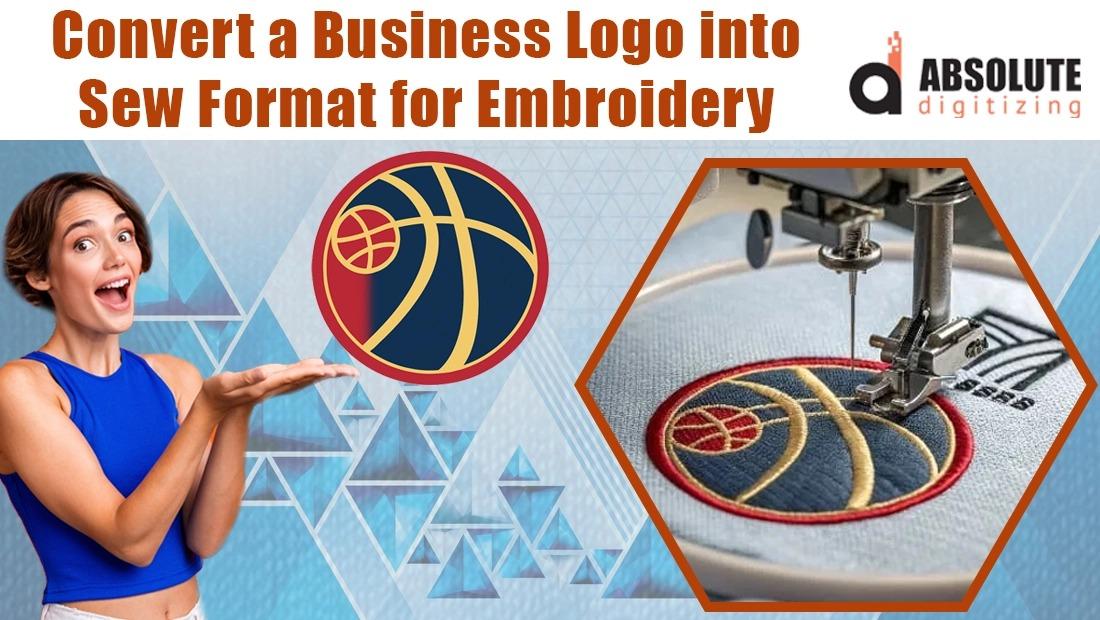
Your business logo is the one visual that shows up everywhere—on websites, signage, packaging, and hopefully soon on embroidered uniforms, caps, and promotional gear. When you want that logo stitched instead of printed, Janome, Elna, and Kenmore machines need it in SEW format to perform at their best. SEW is the native file type these machines read natively, keeping stitch paths precise, color stops accurate, underlay instructions intact, and compensation values dialed in exactly as intended. A quick online converter might give you something that loads, but it rarely produces the clean, efficient file needed for professional-looking embroidery. Real conversion involves preparation, thoughtful digitizing, and testing so the finished logo looks sharp, feels comfortable, and holds up wash after wash. Here’s the complete, practical guide to convert business logo to SEW file format the way that delivers consistent, high-end results.
Why SEW Is the Right Choice for Janome-Compatible Machines
SEW files carry everything Janome machines expect: detailed stitch coordinates, thread color assignments, underlay settings, pull compensation, and hoop positioning data. The machine displays the correct thread names on-screen and runs with minimal manual intervention. Generic formats like DST strip away most of this intelligence, forcing extra thread changes, slower runs, or visible quality differences. For logos that appear in small sizes on chest pockets or larger placements on jackets, SEW ensures the design scales cleanly and stitches reliably without unexpected distortions or breaks.
Start with the Highest-Quality Logo Artwork
The embroidery can only be as good as the starting file. Low-resolution JPGs or PNGs force the digitizer to invent edges and details, leading to blocky results and unnecessary stitch buildup. Always request the highest-resolution version available—ideally a vector file (AI, EPS, or SVG) so scaling remains perfect. If only raster artwork arrives, use at least 1500 pixels on the longest side. Crop tightly around the logo to remove wasted space. Boost contrast for sharp edges. Reduce colors to 6–10 shades maximum. Remove backgrounds unless they’re intentional. These early steps give the digitizer clear, usable shapes.
Vectorization for Flawless Scalability
Raster logos degrade when resized; vectors do not. Convert your cleaned logo to SVG using tracing tools that transform pixels into smooth mathematical paths. The resulting file scales perfectly from tiny 2-inch chest placements to large 10-inch jacket backs without losing sharpness. Digitizing software reads vector paths far more accurately than pixels, producing cleaner satin columns and balanced fills. Even if you skip full vectorization, approaching the design with clean, closed shapes in mind guides smarter digitizing choices.
Select Digitizing Software That Handles SEW Well
Not every program exports SEW cleanly. Look for tools with strong auto-tracing wizards followed by precise manual editing capabilities. Many popular options work seamlessly with Janome machines, offering thread chart matching and detailed control over density, compensation, and underlay. Import your prepared image (PNG or SVG preferred), let the auto features generate an initial draft, then switch to editing mode. The ability to fine-tune every object individually is what separates average files from production-ready ones.
Digitize Logos with Janome-Specific Care
Auto-digitizing provides a fast starting point by recognizing shapes and assigning satin for borders and tatami fills for solid areas. Review everything closely: widen thin satin columns to 4–6 mm for durability, add edge-run underlay on every object (Janome machines rely on strong foundations), and set density around 0.40–0.45 mm for most fabrics. Apply pull compensation (0.3–0.5 mm) so circles remain round and letters stay straight. For logos, manually trace curves with bezier tools to ensure perfect flow and sharp corners.
Optimize Pathing for Efficient Production
Poor sequencing creates unnecessary jumps and trims. Reorder objects so same-color sections connect logically, even when they’re visually separate. Combine shapes where possible to eliminate extra stops. Watch the stitch simulator—if the needle path looks chaotic, rearrange until it flows smoothly. Clean pathing reduces thread waste, shortens run time, and produces a neater backside—especially important for visible items like totes or jackets.
Match Threads Accurately for Consistency
Screen colors rarely match real thread. Open the Janome or Madeira thread chart inside your software and select the closest real-world match for each block. The SEW file will display the exact thread name on your machine screen—no more guessing during stitching. Accurate matching reduces surprises and keeps color consistency across different production runs.
Test Every Logo Before Committing to Production
Screens can deceive; fabric reveals the truth. Hoop scrap material matching your final project—pique for shirts, twill for bags—and run the design. Watch for registration shifts on curves, thread breaks, or density issues. Make notes, return to software, adjust, re-export as SEW, and test again. One quick sample can save dozens of ruined blanks and protect your reputation.
Final Thoughts
Converting a business logo to SEW files unlocks the full potential of your Janome-compatible machines for professional, polished embroidery that strengthens your brand image. Careful preparation, precise digitizing, optimized pathing, and thorough testing turn what could be a headache into smooth, reliable results that last. Skip the shortcuts that lead to disappointment—embrace the process for logos that look intentional and impress every time someone sees them. Your brand deserves embroidery that matches its quality—one clean SEW file at a time.

 English
 Arabic
 French
 Spanish
 Deutsch
 Turkish
 Dutch
Dutch
 Italiano
 Russian
 Romaian
 Portuguese (Brazil)
 Tiếng Việt